KLIKConnect V4 Now Available – Download for: Windows or Mac
KLIKConnect lets you start a video call on your laptop, then move it to the big screen in any KLIK-equipped room. Use the room’s webcam and sound system for the best video and audio performance without the cost and complexity of typical room systems.
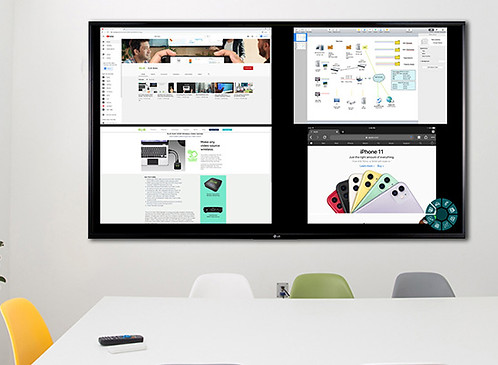
Only KLIK allows users to share content to multiple screens, one at a time, or any number at the same time. Expand how much content can be shared, or allow screens to work together in partitioned spaces. Multicasting unleashes your options for more expansive collaboration.
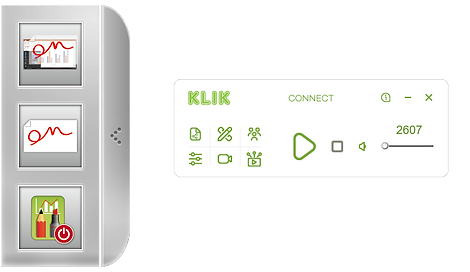
KLIKConnect includes a full-featured annotation app that lets you draw, type and color right over any shared content. Take screen shots for later sharing or switch to whiteboard view for illustrations and brainstorming sessions without limitations.
KLIKConnect gives users a stable and intuitive interface to all of the collaboration features of the KLIK platform. Make faster connections to wireless screens, restrict access to unauthorized users and ensure that your team gets the most out of your wireless collaboration system.
Fully integrated Screen-Sharing, Wireless Conferencing & Collaboration app for all KLIK models.
Wireless Videoconferencing link to room Webcam & Audio System from any video meeting platform.
Wireless Screen Mirroring of any Content from Windows & Mac PCs, in Full HD.
Multicast feature supports Audio & Video Routing for Multi-screen Content Sharing.
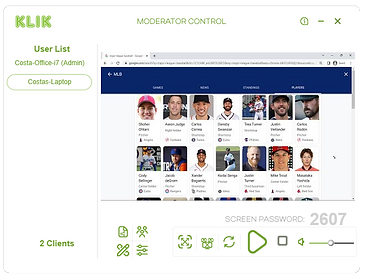
Moderator Mode permits organizer to preview user content before pushing it to the screen.
Moderator can Maximize and Minimize user content from within the app.
Integrated File Sharing utility allows bi-directional peer to peer drag-and-drop file exchange.
KLIKStream feature allows users to view content inside a browser with no app installation.
Included Annotation & Whiteboard app allows users to mark up and share content.
Password-protected screen access, with Administrator gateway to Moderator Mode.
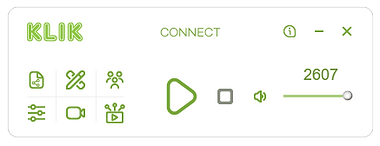
Simple, intuitive Media Player UI with Start, Stop, Pause and Volume controls.
Easily switch between Mirror of Main or Secondary display, or Extended Desktop mode.
KLIKConnect™ unleashes the full potential of every KLIK Wireless Collaboration System by combining connectivity management with a suite of productivity tools, all available as a free download.
From locating and connecting to Wi-Fi and KLIK devices, to Annotation and Whiteboarding tools, KLIKConnect is an indispensable part of any collaboration environment.
Available for Windows & Mac PCs.
KLIKConnect is an application created specifically for wireless screen sharing & collaboration in a business, education or government environment, something consumer screen-mirroring apps are just not able to properly support.
While there are many advantages to using KLIKConnect over consumer protocols, here are some of the main considerations and advantages:
Connection Management – KLIKConnect allows for enhanced security, and control over who can connect to the display screen. This includes the use of a password, and a moderated mode that permits one person to both preview and approve content for sharing.
Greater Stability – KLIKConnect is designed to work across all types of networks and allows faster detection of available screens by name, along with more reliable and secure connections.
User Interface – While consumer protocols are often hidden behind menus, KLIKConnect runs on the desktop and offers users a simple and intuitive user interface that makes it easy to start, pause and stop screen-sharing sessions and access to other important features.
More Features – KLIKConnect includes important collaboration features such as annotation, whiteboard, file-sharing, video conferencing, and multi-screen casting, to name a few.
KLIKConnect is easy to download and install, and will help you start collaborating at a higher level immediately.
The classroom is in fact the first application for which the Moderator mode was created. Moderator mode simply allows one authorized user to take on the role of screening content before it is shared to the screen by users. This can be accomplished from the KLIKConnect app, or form the on-screen display. Here are some of the key features of Moderator mode:
See All Users – Ensure that all of the users expected to share content are in fact connected to the KLIK, with a scrolling list.
Preview Content – Click or tap on any user’s name to see preview what they are about to share to the big screen, then approve the content.
Minimize & Maximize – Select any piece of shared content any instantly maximize it to fill the screen for closer analysis, then return it to the split-screen view with just one click.
Maintain Flow – By taking control of which and when content is displayed, you eliminate the gaps between presenters and speed up a class or session. That leads to greater focus among participants as it eliminates down time and enhances flow.
Moderator mode is indispensable in a classroom environment, but it might not be the right way to conduct meetings or other events. That’s okay because it’s only one of the many options the KLIK offers for wireless screen sharing and active collaboration in any organization.
KLIKConnect file sharing uses a peer-to-peer technology to allow limited file sharing between users across the network. To share files you simply open the file-sharing interface, drag and drop files into it, then select the people you want to share the files with.
When a file is shared with another user, their file-sharing icon will flash, prompting them to select and download the file(s). Files are saved to the Downloads folder and may be opened immediately by clicking on the Open button.
The intent of the file-sharing feature is to offer a fast, simple way to share files on an ad hoc basis, between participants connected to the same KLIK. No files are stored on the KLIK, and their contents are never transmitted anywhere except across the local area network.
Yes, the annotation application that’s part of KLIKConnect is completely independent of the app that’s hosted on the HUB. While the annotation feature on the HUB is powerful, the version inside the KLIKConnect app is available also available offline, making it ideal for all sorts of purposes.
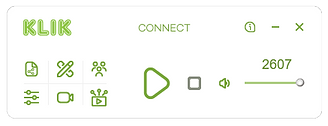
Once you’ve connected to a KLIK, you can launch the annotation app by clicking on the icon in the Player. Choose your annotation tool and color, then start annotating right over the displayed content. Now you can pause the annotation, start sharing your image, then turn the annotation on to get your point across.

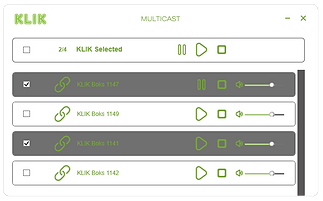
Multicast is one of the most powerful features inside KLIKConnect, and it’s also one of the simplest to use. Start by opening the Multicast panel by clicking or tapping on the icon in the Player.

Inside the Multicast panel you’ll see a list of accessible KLIK devices, not including the device you’re already connected to. Now you can select one or more of these devices individually, or

all at the same time, and start sharing content.
To start, pause and stop sharing individually, simply use each KLIK’s displayed controls. To share to multiple units at the same time, use the controls at the top of the Multicast panel.
KLIK Wireless Video Conferencing, aka BYOM, is a breakthrough for organizations returning to in-person attendance, who also need to keep remote participants in the loop. Before describing how it works, let’s look at the key advantages of using this feature.
Using only a Laptop – One way to host a video conference is by using your laptop, without any external AV gear. In that scenario, you and your cohorts need to all sit in close proximity to the laptop so you can see the remote party, and they can see you. Of course that also goes for the audio system, where the laptop mic needs to pick you up and you also need to hear. Of course if your in-person colleagues also want to share content, they’ll need to join the call, which usually results in feedback, all while others are still forced to huddle around a laptop.
Using a “room” system – Room conferencing systems require a dedicated computer, control surface, audio and video equipment, and a control system to automate an otherwise-complicated setup. Add to the cost of hardware an expensive “room” subscription, and it’s no wonder very few rooms are equipped that way, resulting in bottlenecks for scheduling meetings, and restricting the length of each session.
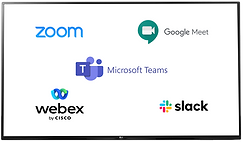
Using KLIK Conference – With a KLIK-enable screen, there is no need for a dedicated PC or a costly “room” subscription. You simply walk in with your laptop, connect to the KLIK and share the existing Display, Webcam and Audio system, to conduct your call. You can even use a free version of Zoom, Teams, Meet, or your own favorite app, and enjoy great audio, video, and content-sharing with both in-person and remote attendees. Oh, and when the meeting’s over, or someone else needs the room, you can continue the call on your laptop by just disconnecting from the room’s peripherals.

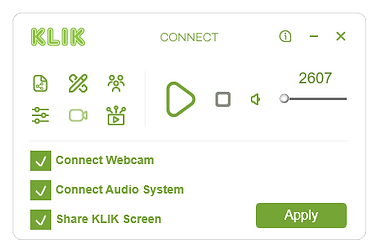
To start a call in a KLIK-equipped room, simply open the KLIKConference drop-down inside the Player and select the Webcam and Audio System check boxes. Click Apply and your PC is now ready to use the room’s peripherals for the call.
Notice that last option to “Share KLIK Screen”? That’s another KLIK exclusive feature that allows you to share exactly what’s being shown on the local screen with remote participants. When this option is selected the KLIK Screen window opens on your desktop and can be dragged, resized and hidden as needed.