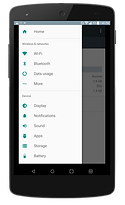
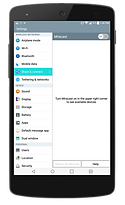
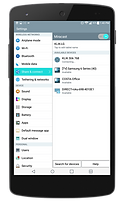
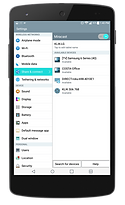
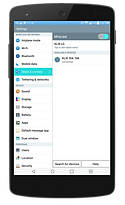
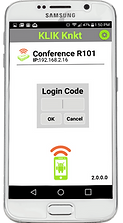
Android includes Miracast as its native screen sharing utility, which is supported by KLIK. Follow the steps shown to start streaming to KLIK using the built-in utility. Note that the screen sharing utility name varies by hardware manufacturer but may be called ‘Cast’. For further information, consult your manufacturer’s user manual.
Faster Access to Android Screen Sharing with the KLIK Mirror App
Using the KLIK Mirror App
Android includes Miracast as its native screen sharing utility, which is supported by KLIK. The KLIK Mirror app acts a shortcut tool to the native streaming utility.
Get KLIK Mirror Now
Link to Google Play
Watch the KLIK Mirror Video
Need More Control? Install the KLIK Knkt App for Android
Using the KLIK Mirror App
Android includes Miracast as its native screen sharing utility, which is supported by KLIK. The KLIK Mirror app acts a shortcut tool to the native streaming utility.
Get KLIK Mirror Now
Link to Google Play
Feature
Native
KLIK App
Full Screen Mirroring
YES
YES
Extended Desktop Support
NO
NO
Annotator & Whiteboard
NO
NO
KLIKStream Remote Viewing
NO
NO
Moderated Access
NO
YES
Password Restricted Access
NO
YES
USB Control Back-Channel
NO
NO
Knkt allows Android devices to operate in Moderated Mode
Compare the Features and Capabilities of All Android Connection Methods
Using Android with KLIK
Android users have three options for full-screen mirroring from Android devices. First, KLIK supports Miracast, that’s already built in to Android. Second, we offer KLIKMirror, a shortcut app that makes it easy to start a Miracast session, and finally, we offer the KLIKConnect app. Choose the method that best meets your needs from the table and learn more by following the links.
Feature
Miracast
KLIKMirror
KLIK Knkt
No Installation Required
YES
NO
NO
Easy & Intuitive Operation
NO
YES
YES
Full Screen Mirroring
YES
YES
YES
Password Restricted Access
NO
NO
YES
Moderated Access
NO
NO
YES
Android Version Compatibility
ALL
< 8.0
< 8.0
Android Hardware Miracast Compatibility
Many Android devices running 4.2 or later software can share their screen to KLIK without using an app. Simply use the Android “Cast” function to select the KLIK Boks and start mirroring your screen. To see if your device is compatible, check this list of devices:
Brand
Product
Model Number
BlackBerry Ltd.
BlackBerry Q20 – SQC100-2/SQC100-4
BlackBerry Q20 – SQC100-2/SQC100-4
HTC Corporation
2PNT000
2PNT000
HTC Corporation
0PKXXXXXX
0PKX00000
BlackBerry Ltd.
BlackBerry Khan – SQK100-2
BlackBerry Khan – SQK100-2
BlackBerry Ltd.
BlackBerry Q10 – SQN100-5
BlackBerry Q10 – SQN100-5
BlackBerry Ltd.
BlackBerry Q10 – SQN100-2
BlackBerry Q10 – SQN100-2
BlackBerry Ltd.
BlackBerry Q5 – SQR100-2
BlackBerry Q5 – SQR100-2
HTC Corporation
0P6BXXXXX
0P6BXXXXX
BlackBerry Ltd.
BlackBerry Q10 – SQN100-1
BlackBerry Q10 – SQN100-1
BlackBerry Ltd.
BlackBerry Z30 – STA100-6
BlackBerry Z30 – STA100-6
HTC Corporation
2PQ8XXX
2PQ8000
Since “casting” is enabled differently among brands and models of Android device, consult with your device manual for details. You may also install the KLIK Mirror for Android app that will give you one-click access to the “casting” function of your compatible Android device.