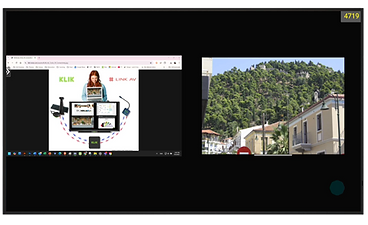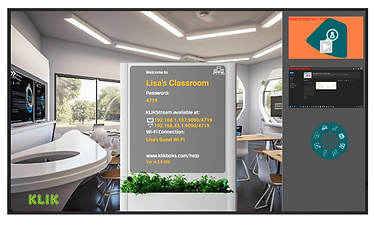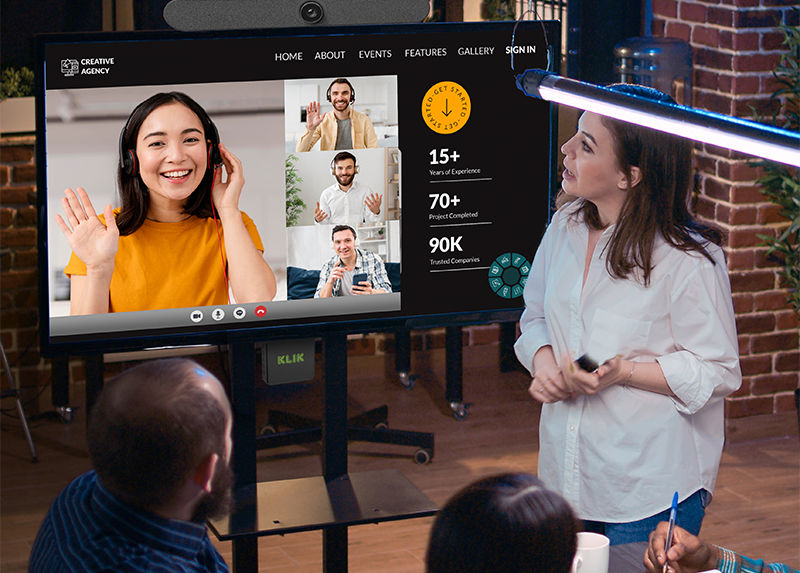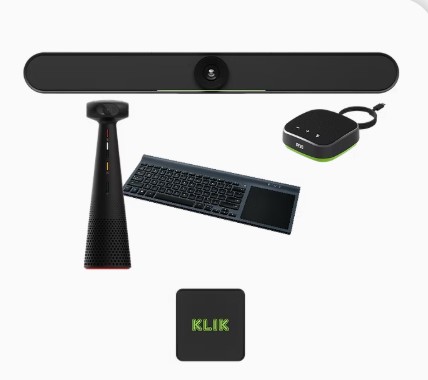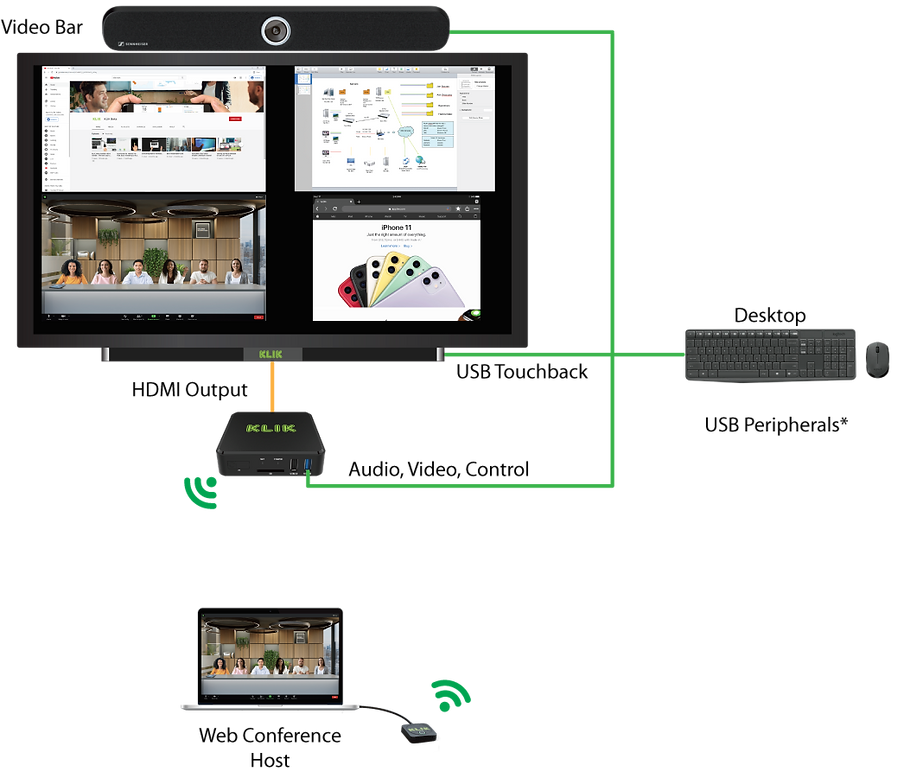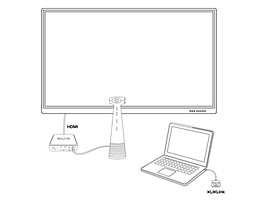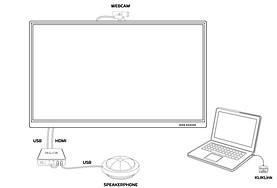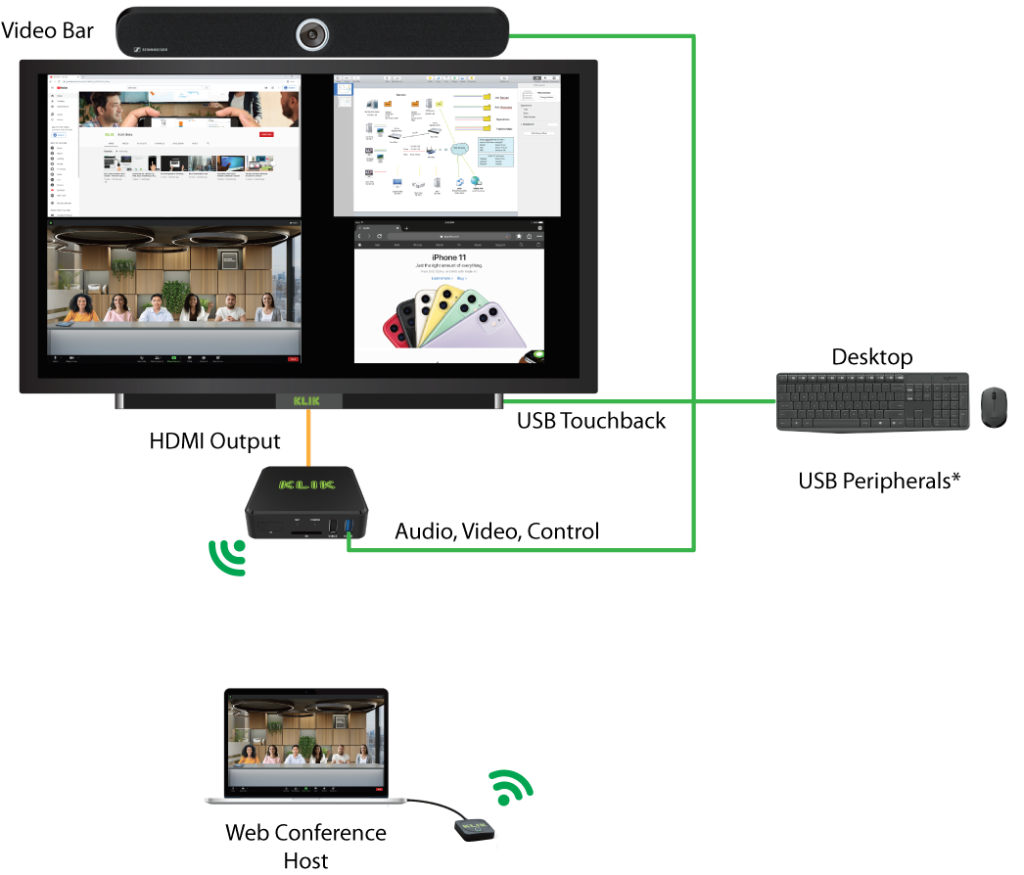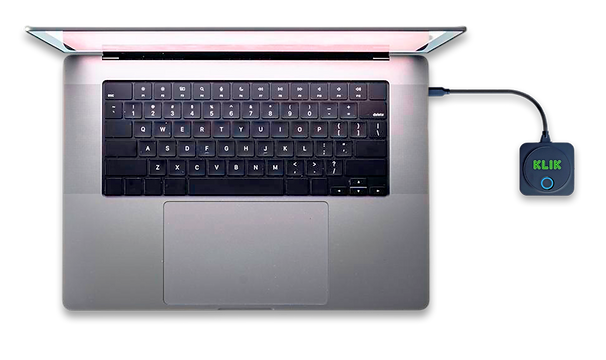


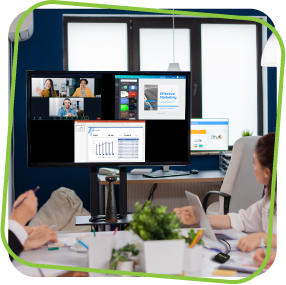
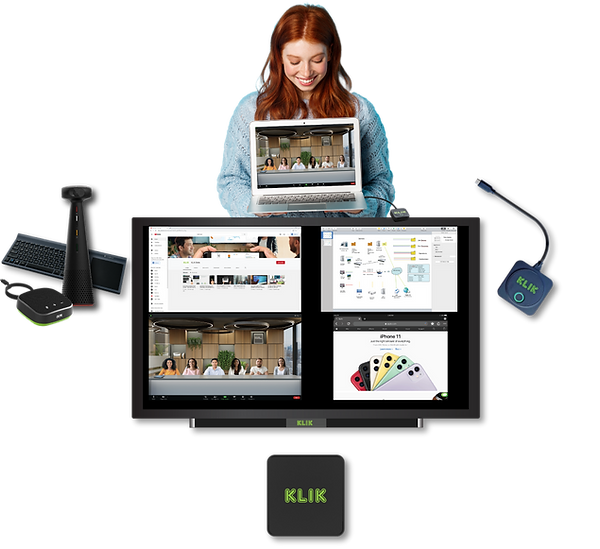

Connect to the room's webcam for conference calls right from your own PC. Use any USB webcam or integrated video bar, or take collaboration to the next level with multiple cameras and a video switcher feeding the composite signal over USB to the HUB. The possibilities are near limitless and it all connects with the KLIKLink AV wireless collaboration adapter. Supports core-compliant Webcams & Video Capture
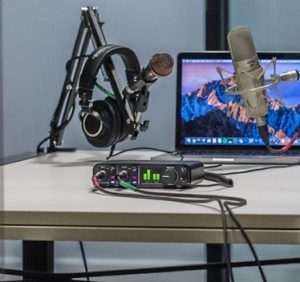
Connect wirelessly to the room's audio system whether it consists of an integrated speakerphone or a custom multi-microphone and speaker system integrated into the room. Conference calls are immediately enhanced with intelligibility and loudness tailored to the acoustic environment. KLIKLink delivers instant connectivity wirelessly. Integrated Speakerphone, Sound Card, Audio Interface
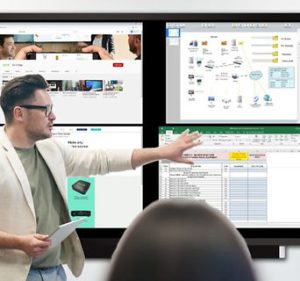
Share content to the HUB that can be displayed in full-screen or split-screen views alongside content shared by other users. Instantly switch between viewing modes with on-screen controls or from the KLIKConnect app in Moderator mode. All displayed content can be annotated, recorded, or live streamed Full-HD Screen Sharing, Split screen, Moderation
KLIKLink also connects to the touch-enabled display for total control of the connected PC right from the screen. No touchscreen, no problem. With full HID support, KLIKLink AV can share a keyboard, mouse, presentation remote, or any compatible Human Interface Device, allowing for seamless integration of each presenter's content and PC.
Supports 10-point Touch, Keyboard, Mouse, Native HID
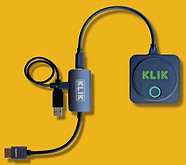
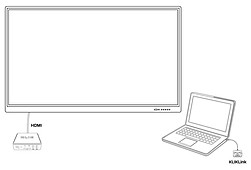
KLIKLink AV expands its utility with the included KB118 HDMI adapter that is compatible with any HDMI equipped video source. So no matter the source, connectivity is immediate, performance is outstanding, and all of the features, including touchback and conferencing integration are preserved. HDMI Video Capture, USB Data Capture, to USB-C
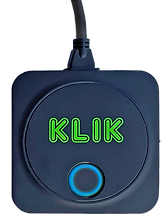
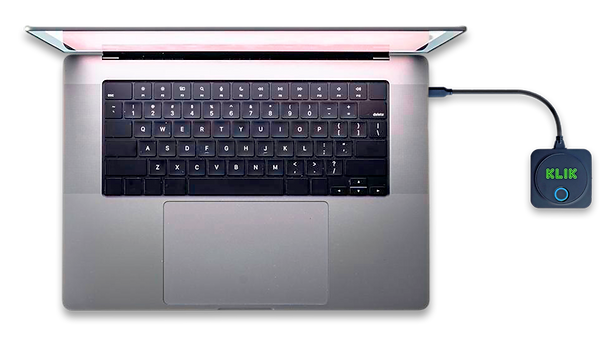
KLIKLink adds wireless screen sharing, video conferencing, and touch control to any USB-C* or HDMI PC.
KLIKLink AV delivers instant, seamless connectivity—screen sharing, Video Conference integration, and touchscreen control with a single tap. Simplify setup, reduce downtime, and empower teams to collaborate effortlessly—whether you’re presenting, teaching, or brainstorming.

Instantly connect your device to displays, conferencing peripherals, and touchscreens—no cables or confusion.

No tech headaches, no need for support, no wasted meeting time. Just walk in, tap, and get started—every time.

Instantly connect your device to displays, conferencing peripherals, and touchscreens—no cables or confusion.
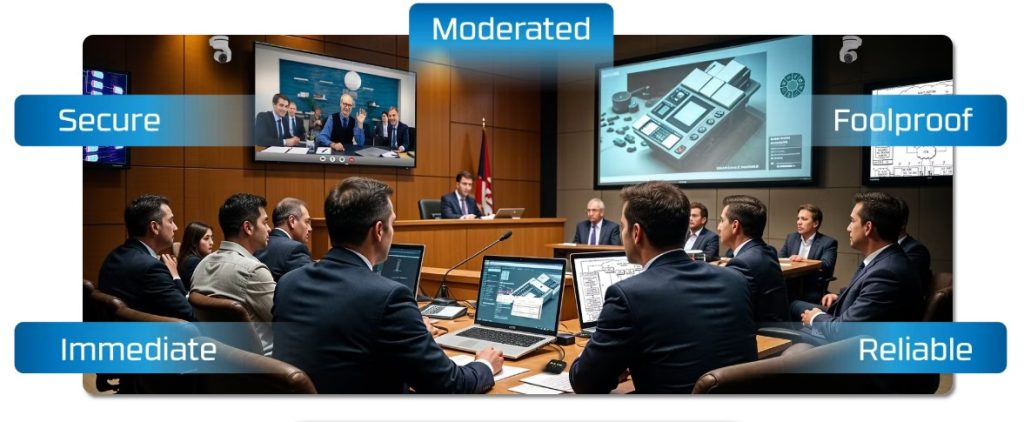
KLIKLink AV supports three types of Screen Sharing; Spontaneous, Self Managed, and Moderated.
All you do is push one button to share content.
Share screens side-by-side on demand—ideal for informal collaboration or team huddles.
Full moderation tools accessible directly from the room’s touchscreen or mouse—no PC needed.
Switch between users, control screen layouts, and manage sharing—right from your desktop.
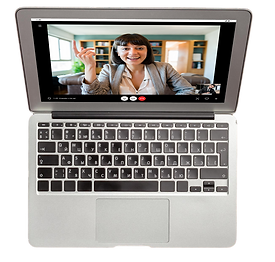
BYOM is the simpler way to hold Video Meetings on your laptop, using the room’s AV.
Push one button to connect the screen, camera, and sound system instantly.
* As long as you can select USB audio and video components in the app. Hardware compatibility varies by manufacturer’s support for Core USB. More…
Link replaces the cables.
Select the video setting to optimize video playback by smoothing motion sequences and delivering fluid video without dropping frames.
* Video Streaming is directly impacted by network speeds and wireless environment.
KLIKLink AV works with virtually any device—USB-C laptops, tablets, and smartphones, plus HDMI devices using the included KB118 adapter. Whether you're on Mac, Windows, iPad, or Android, KLIKLink AV makes wireless screen sharing fast, consistent, and effortless.
Supported features vary by computing platform and model. To learn more about features supported across devices by operating system and form factor, select Device Type. To see if your device supports DisplayPort video in alternate mode, tap on USB-C Video.
KLIKLink AV is Made for KLIKBoks HUB.
Integrating KLIKLink AV with the KLIKBoks HUB streamlines meeting room setup, reduces support demands, and ensures consistent, high-quality collaboration—driving operational efficiency and enterprise-wide ROI.
Learn more about
KLIKBoks HUB.
Simple, intuitive colors and states of the single LED ring aid in setup and operation. Start by attaching KLIKLink AV to the host PC, enter pairing mode, and it’s ready to start videoconferencing in seconds. Start and stop wireless screen sharing with the push of a single button.
Support legacy PCs and all HDMI sources.
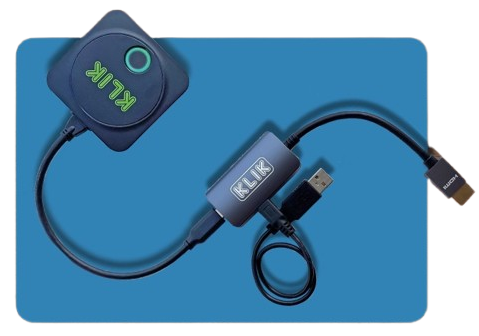
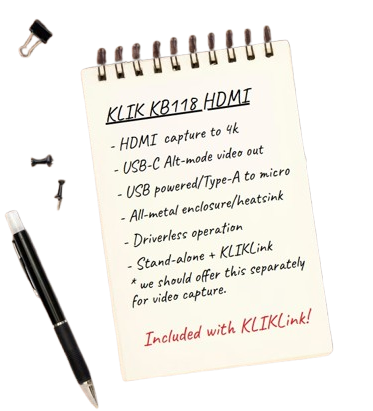
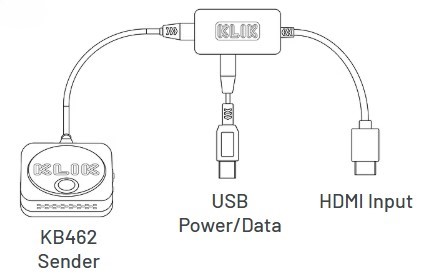
The KB118 HDMI Adapter captures video from any HDMI source and converts it to USB-C in real time, bridging HDMI video with the KLIKLink AV. It also bridges USB data between the client PC and the KLIKLink AV, supporting conferencing and touchback. And, it’s included with every KLIKLink AV at no extra charge.
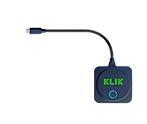
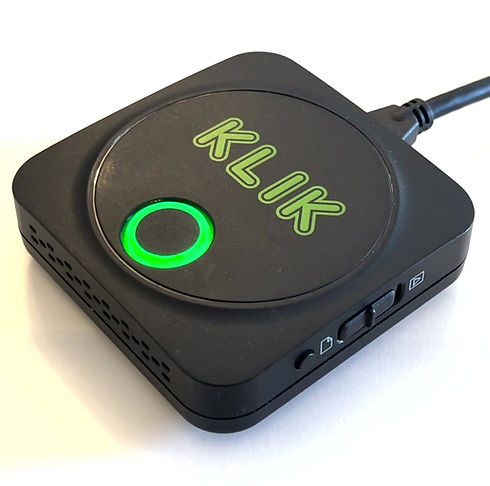
KLIKLink AV (KB462A) is a wireless adapter designed for use with the KLIKBoks HUB (KB1200), enabling wireless screen-sharing, conferencing, and touch integration between a host PC and the display, camera, and audio system inside the room. The KB462 connects to the PC using the cabled USB-C interface, or optionally by using the included KB118 HDMI to USB-C capture device.
KB462 USB-C Sender
KB118 HDMI to USB-C Video Capture Device
USB Type-A to Micro Power/Data Cable
Quick Start Guide
KLIKLink AV User Manual
Integrated AV Conferencing
Discrete AV Conferencing
KLIKLink AV is a hardware accessory designed to bring a new level of simplicity and ease-of-use to the KLIKBoks HUB for use in Classrooms, Meeting Rooms, and Event Spaces. With KLIKLink AV you can:
Wirelessly cast video from any HDMI or USB-C source to the screen, including Smartphones, Tablets, PCs, Video & Document Cameras, Media Players, and more.
Wirelessly connect a PC to the room’s Meeting Video Camera & Audio System, to use with Zoom, Teams, Meet, WebEx, and any other standards-based video meeting platform.
Wirelessly connect a touch-enabled display to your Windows or Mac PC, allowing fully-interactive operation between the two for meetings, classes, and demonstrations.
The benefits of using a KLIKLink AV in your learning, meeting, or event space are many, and include:
Save up to 18% of meeting time by simplifying the connection between the source device (your PC, Tablet or Smartphone) and the Screen, Video Camera, and Audio System already in the room.
Allow anyone to present digital content, from any device, without cables, software applications, or complex setup procedures; just plug-and-play.
Eliminate the costs of in-room computing and control systems, and the ongoing cost of video platform subscriptions, by enabling users to host calls on their own device, using the room’s hardware.
Whether you need a KLIKLink AV to go with your KLIKBoks HUB depends on who, where, and how, your wireless collaboration system is used. Here are a couple of scenarios to consider:
In a corporate meeting room environment, hosting an ever-changing roster of presenters, KLIKLink AV maintains meeting flow by ensuring that all participants can connect to the screen quickly, from any device, every time.
In a classroom where students and faculty are using the KLIK collaboration system every day, KLIKLink AV helps guest presenters make fast and reliable connections to the collaboration system without cables, adapters, or software apps.
In multi-function event spaces, hosting both regular and occasional users, a few KLIKLink AV devices can make it easy for everyone to participate in a KLIK collaboration session, even if they’ve never done so before.
KLIKLink AV is your multi-purpose AV connector, designed with the user in mind.
The Conferencing feature is the latest feature addition to the KLIKLink AV, and it completely transforms the the video conferencing experience in any meeting room, conference room, or classroom. KLIKLink AV allows a user to connect to the room’s Audio & Video systems for video conferencing, by just plugging in the KB462A and pressing one button.
How it Works
The KLIKBoks HUB is installed in the room, connecting to its professional-grade peripherals—display, audio system, and cameras. There’s no need for a dedicated computer, “Room” subscription, or complicated control systems. Instead, users simply start their video conference on a laptop, then walk into any HUB-equipped room and instantly upgrade their meeting by plugging in the KLIKLink AV. With a single click, the laptop hands off the conference to the room’s high-quality hardware. When it’s time to leave, just press a button to disconnect from the room and take the meeting with you. No restrictions, no room bookings—just wireless video conferencing that adapts to the way you work.
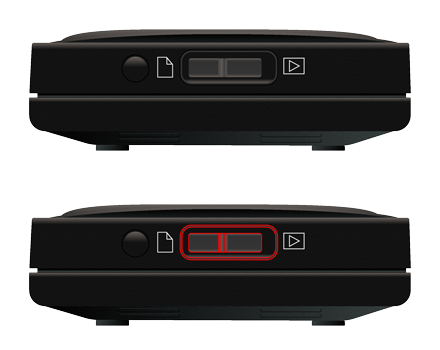
To be clear, there are two switches; one is a push-button switch and the other is a slide switch. The push-button is enables the wireless conferencing feature while the slide switch allows users to select the most appropriate operational mode depending on their presentation.
KLIKLink AV: Wireless Room Conferencing, Without the Room.
KLIKLink AV transforms any conference room into a high-performance video meeting space—without the cost, complexity, or rigidity of a dedicated room system. Simply plug in, connect to the room’s cameras, speakers, and display, and enjoy a seamless, professional-grade conferencing experience from your own laptop. No extra subscriptions, no IT headaches—just effortless, wireless video conferencing that moves with you. And all of this is activated by pushing one small button.
Optimize Wireless Video Performance
KLIKLink AV offers two operating modes in order to best match the type of material being shared to the screen. When switched to the Left, the device is in Presentation Mode, and when switched to the right, it is in Video Mode. Selecting the most appropriate mode for the given application will improve the overall experience of both presenters and the audience. Here’s what the two settings actually do:
Presentation Mode – A typical presentation involves the static display of “slide” images, with occasional transitions between slides. There may also be interactions with the displayed content such as moves and clicks of a mouse, inputting of text, or opening web pages, etc. In these applications it is important that what is displayed on the screen appears instantly, with as little delay as possible. That way, the presenter and their content remain synchronized. In Presentation Mode, KLIKLink AV prioritizes high-speed delivery of the image to the screen to minimize latency (delay).
Video Mode – Streaming video content involves the use of considerable network bandwidth in order to deliver smooth motion and mitigate lost or dropped video frames. One way to ensure that needed bandwidth is available is to “buffer” the video stream, by storing several frames in memory, thereby allowing for variations in bandwidth without disruption of video flow. Since video playback is not interactive, there is no need to minimize latency for the purpose of synchronization. In Video Mode, KLIKLink AV prioritizes video stability by introducing a slight delay to “stockpile” video frames and prevent dropouts.
Please note that mode switching requires a power cycle, so disconnect the KLIKLink AV first, change the switch selection, then reconnect to the host device.
KLIKLink AV requires an external power source. When connected to a device over USB-C, KLIKLink AV draws its power from that device. That is the case when it is connected to a Laptop, Tablet, or Smartphone.
However, when using the KLIKLink AV with the supplied HDMI adapter, power must be supplied through the adapter itself. Simply connect the supplied power cable between the HDMI adapter and any USB power source, then plug the KLIKLink AV into the adapter. Power from the USB power source will now supply both the HDMI adapter and the KLIKLink AV.
Great question, and worthy of a full answer. But first, here’s a fast way to determine if your computer or mobile device is compatible with DisplayPort, the technology that puts video onto USB.
In the event the above links do not lead to your specific device, try the manufacturer’s website and look under the specifications for reference to “DisplayPort (or DP) in Alt Mode over USB-C”.
Now, the longer answer, for those who need to know. It’s pretty safe to say that most people know that USB is the standard way we connect peripherals to our devices. Webcams, keyboards, printers, and most other physical accessories attach to to our PCs and mobile devices over this well-known technology, albeit on a few different types of connector.
To put the importance of USB technology into perspective, we just need to look back to the early days of computing to appreciate how far we’ve come with USB. In the early days of computing, there were different connectors for everything; mouse, keyboard, printer, display, etc. USB slowly absorbed the functions of these disparate connectors to the extent that USB is pretty much the only connector found on modern devices.
That is, aside for video. The HDMI connector, popularized for delivery of high-definition video in consumer electronics has pretty much owned the video interface segment for decades. And that’s where DisplayPort (DP) comes into the picture, as the de facto standard for high definition video transport in the computing segment, now running over USB cables in what is called “Alt Mode”.
The advantages are clear. One cable can now carry video, data, and power between devices. And that cable looks exactly like a USB-C cable. Not every USB-C cable is certified for video transmission, so be sure to read the fine print. Likewise, not every USB-C port supports video transmission. So beware, that new laptop or mobile phone might not be capable of direct connection to a video display, even though it is equipped with a USB-C port.
KLIK products that support video over USB-C are clearly marked as such. For example, KLIKLink AV and KLIKStik GO senders support HD video over USB-C.
To learn more about USB and DisplayPort, refer to the following links: