KLIKConnect V4 Now Available – Download for: Windows or Mac
KLIKBOKS HUB SETUP GUIDE
Get your KLIKBoks HUB set up quickly and easily with this guide.
There’s a lot to know about the KLIKBoks HUB, so let’s get started with this quick-start tutorial covering installation and basic setup.
Get the HUB Owner's Manual
Get the HUB Planning & Setup Guide
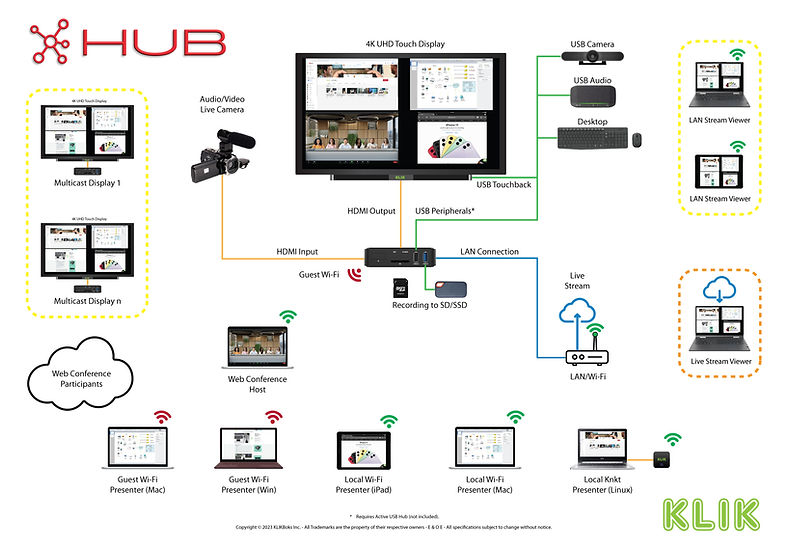
KLIKBoks HUB is the most full-featured and powerful device of its kind, with native support for wireless video conferencing, live streaming, recording, multicasting, file sharing and much more. But despite its power, it’s also easy to deploy and operate.
KLIKBoks HUB Basic Setup
(Requires USB Keyboard & Mouse)
Step 1
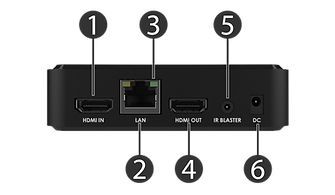
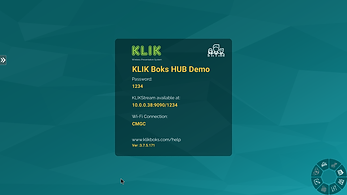
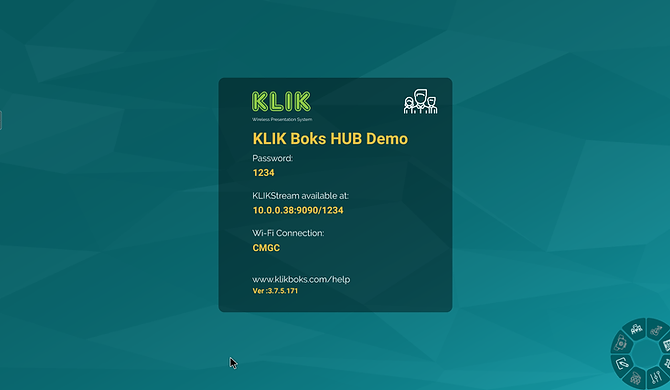
Connect the KLIK to a display (4) and the included power supply (6). If available, connect to a network using an Ethernet cable (2). HUB will power on and display its standby screen.
Step 2
Connect a USB keyboard & mouse to an available USB port on the HUB. Use the mouse to select settings menus and make selections as described below.
Step 3
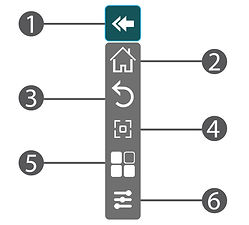
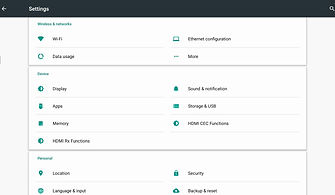
Locate the Menu icon along the left side of the screen, click on it and select Settings (6). Here you will configure the Network connection and various hardware options as needed.
Step 4
Select Wi-Fi or Ethernet to complete the network connectivity settings. Also configure Time and Location and any other settings required, then use the Menu icon to back out of the Settings page and return to the Standby screen.
Step 5
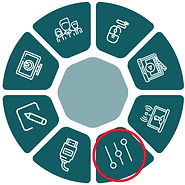
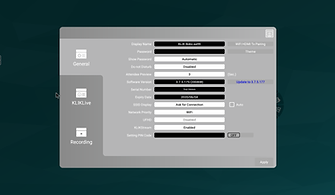
Locate the "Daisy" control panel in the bottom right of the screen, open it and click on the Settings icon to open the KLIK app settings page.
Step 6
Set device display name, password mode and other settings as needed, then click Apply to accept the changes and return to the standby screen.
Step 7
Congratulations, KLIKBoks HUB is ready to use! Be sure to download the Owners Manual for details on all HUB settings and operation.
Questions, issues, need help?
Click on the Support button to access more resources.