Share from your device to the big screen instantly with KLIK, even without installing an app! KLIK offers AirPlay & Google Cast compatibility, optional KLIKLink plug-and-play adapters, and the unified KLIKConnect app for the ultimate in features, performance and ease-of-use.
Share from your device to the big screen instantly with KLIK, even without installing an app! KLIK offers AirPlay & Google Cast compatibility, optional KLIKLink plug-and-play adapters, and the unified KLIKConnect app for the ultimate in features, performance and ease-of-use.
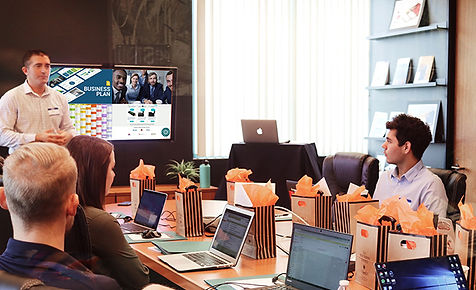
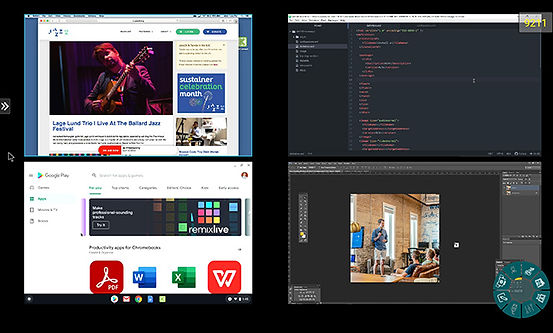
Just start sharing content and the display switches from full-screen, to split-screen as content is added. Maximize any content for a closer view, then return to split-screen view, from the screen, a mouse or the Moderator’s PC .
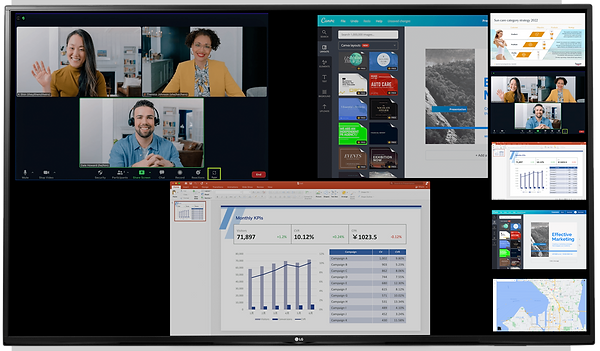
Sometimes you need to manage what is being shown on the big screen and with KLIK, you have two ingenious way to do it. For touch-enabled displays, just tap to see thumbnails of the waiting content. No touchscreen? No problem, preview and manage screen shares using the KLIKConnect app.
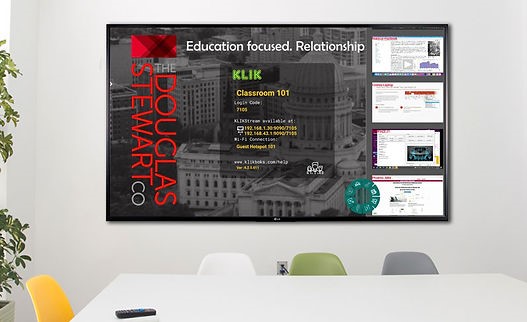
Mac & iOS users can screen mirror using AirPlay, with PIN support, when enabled (default).
Windows, Android & Chromebook users can mirror desktop or browser tabs using Google Chrome.
Windows & Mac users can screen mirror, file share, annotate, live stream & moderate using the KLIKConnect app.
PC users with Thunderbolt or USB-C ports can screen mirror using the KLIKLink USB-C.
Any HDMI video source (camera, media player, Blu-ray, etc.) can project using the KLIKLink HDMI.
Screen splits automatically, up to 4 panes as user content is added.
Each content pane can be maximized to fill the screen, then returned to split-screen view.
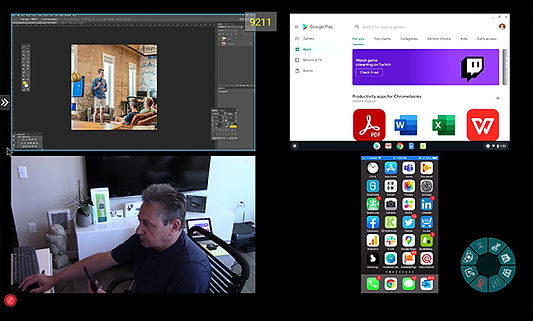

KLIK supports both ad hoc and moderated screensharing, with both in-app and on-screen content preview.
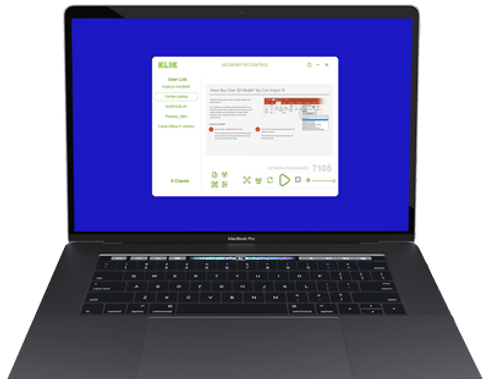
Choose your preferred screensharing management mode based on your specific needs. Select ad hoc sharing for dynamic collaboration sessions in a controlled environment, or choose moderated sharing for classrooms and public venues. Moderated access also offers screen previews through on-screen thumbnails or in-app screen grabs, ensuring the right content is selected and pushed to the big screen.
It all depends on your organization, and your needs. In a casual work environment with frequent guests, AirPlay and Google Cast will do the job. For enhanced security and hybrid meeting support, use the KLIKConnect app. And for devices that don’t support either of these methods, just plug in a KLIKLink sender.
The two most common applications for KLIKLink devices are:
Accommodating guest users with devices that cannot use either native streaming protocols or the KLIKConnect app.
Connecting video devices such as Document Cameras, Digital Microscopes, Media Players and other HDMI-equipped video sources.
The Windows screen mirroring utility accessed through the Win+K shortcut is called Miracast, and KLIK no longer supports this legacy technology. While there are several reasons that the protocol has been deprecated, the two main ones relate to security. Since Miracast is a peer-to-peer protocol, there are no controls restricting access to the screen; anyone can share (sometimes inappropriate) content. The second reason relates to the fact that users do not need to have a network connection to mirror, which removes a major security barrier in most applications. Neither AirPlay or Google Cast have these shortcomings.
Screen preview is a function that allows a moderator to preview shared content before allowing it to be pushed to the big screen. Moderator Mode is available both inside the KLIKConnect app, and on the KLIK itself. When activated inside the KLIKConnect app, a moderator can view individual users’ screens inside the app. When activated on the KLIK itself, thumbnails of users’ screens are viewable on either side of the main screen by tapping on the screen edge.