LIVE STREAMING CLASSES, MEETINGS & EVENTS

A better way to share your content online.

In today’s hybrid environment, you need to share content both with in-person attendees and those joining virtually. And while video conferencing is great for smaller, interactive sessions, live streaming is much more effective at reaching larger audiences. KLIK’s industry-exclusive live streaming function lets you share live video, audio, and digital content to Facebook Live, YouTube, Twitch and many more outlets with just one click.
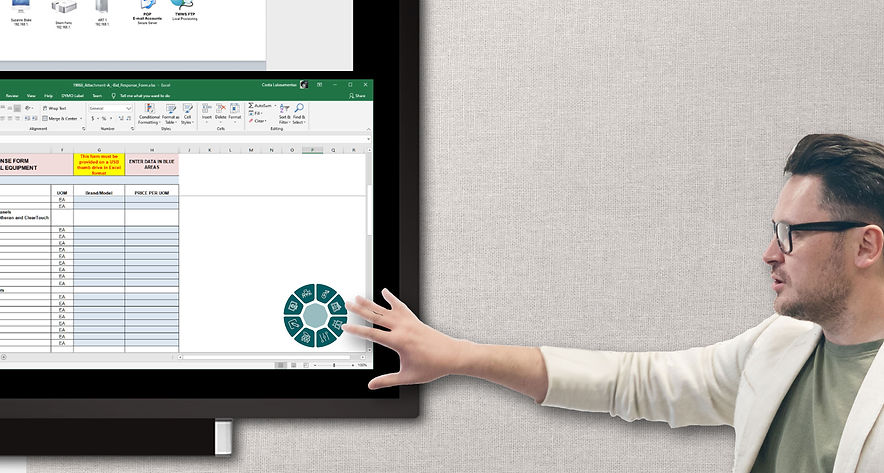
Simplified operation makes it easy to live-stream your content.

Live streaming doesn’t have to be complicated, and with KLIK, it couldn’t be simpler. Just click on the streaming icon and share your content to any destination.

Frequently asked questions

How do I set up live streaming on the KLIK?

Start by selecting the channel you’d like to use, such as Facebook Live, YouTube or Twitch. Next, set up an account and copy the streaming credentials to a USB thumb drive. Copy the credentials to the KLIK and you’re ready to start streaming.

KLIK offers and on-screen control panel called “The Daisy” where the streaming icon is located. Just tap to start the stream and the indicator will light up green to show a successful stream has started. Tap again to stop the stream.

KLIK streams all content that is being shown on the local display, including video, images, documents, and other content, in full-screen or split-screen view. In addition, it passes audio from the HDMI input, even when the HDMI video is not being displayed.

Yes, any and all content shown on the local screen is also live streamed, including annotations, whiteboarding sessions and shared content.

KLIK is an integrated hardware/software solution that is ready to start streaming content as soon as it is connected to the Internet. OBS is a software application that requires a PC to run on, plus all of the audio and video capture hardware needed to ingest video, shared content and audio. OBS also requires setup and training for operation.

There are several different ways to exclude in-camera or private information from a live stream. One way is to simply record the session, then edit out the in-camera portions before sharing with viewers. The other way is to simply stop the stream before in-camera sessions, then restart afterward.

Yes, simply make the title and closing slides using a presentation app and share that content at the appropriate time during the live stream.

KLIK is designed to support better collaboration through live streaming with a simplified user interface that can be operated by anyone. For more sophisticated production needs, additional hardware and/or software tools will be required.

Live streaming capability is built into the KLIK and there is no added cost to use the feature.

Yes, it is possible to host a video conference call and simultaneously live stream that call along with locally-shared content. The setup can be wireless, using the KLIKConnect app, or wired, from a PC’s HDMI output to tyhe KLIK’s HDMI input.