
CAPTURE, SHARE, RECORD & STREAM LIVE VIDEO

Add the power of live video capture to your digital collaboration tool kit.


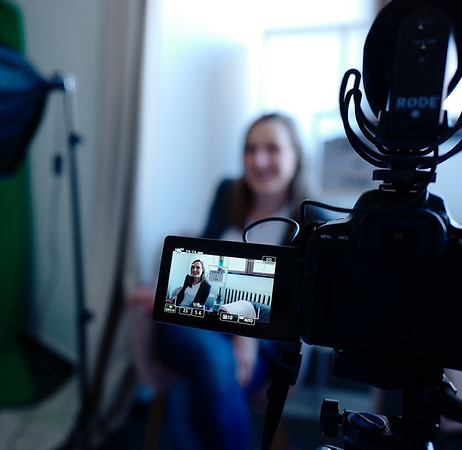
Take digital collaboration to a whole new level with live video capture using the KLIKBoks HUB collaboration system. Connect any HDMI-equipped camera to capture all of the action in high definition. Lecture capture, meeting archives, live streaming to the Internet, are all now possible with KLIK. Start capturing live video and audio with just one click.

Get the benefits of audio and video capture, without the cost or complexity.

Capture, share, record and stream video right alongside of all your content in high definition with KLIKBoks HUB’s HDMI video capture input. No additional hardware, software or expertise required.

Capture from a video camera, media player or document camera and share to the big screen, record, or even stream live to the Internet with KLIK’s video capture capabilities.

Only KLIK video capture can do all of this.

  • Capture full-motion video & audio from any HDMI source, including cameras & media players, in full-HD.
  • Start and stop video capture with just one click on the Daisy control panel.
  • Pass audio even when the video is not displayed on-screen, for remote viewers.
  • Conduct webinars, lectures, press conferences, live events, services, and informational sessions for streaming to the Internet.
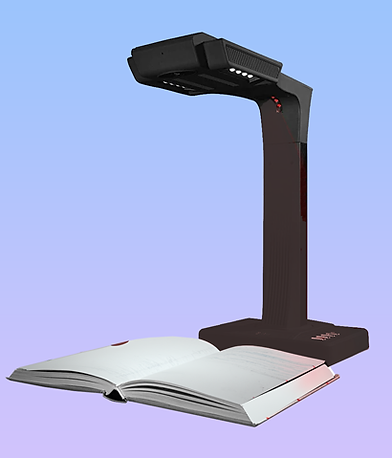
  • Connect document cameras for live capture of books, artwork, components, assemblies and other teaching aids.
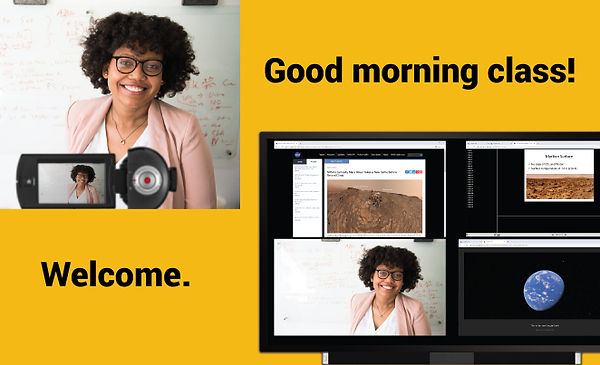
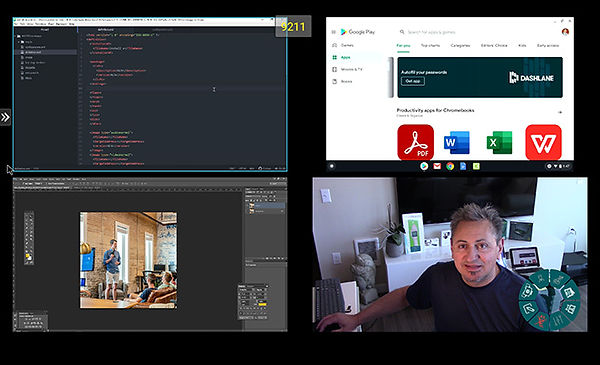
  • Display, record & stream video alongside other shared content in split-screen or full-screen view.

Record, Share, & Stream

Audio & Video in High Definition

Capturing video is easy with just one KLIK.

Forget complicated software applications and expensive video hardware. With KLIK it’s just as easy as clicking on one icon to start your live video capture.

Show your video content alongside other content shares or in full screen view, for the most immersive digital collaboration possible.

Our HDMI input features audio passthrough. Clever engineers.

Marketing materials aren’t supposed to contain technical jargon, but we’re just too excited about KLIK’s audio passthrough feature to ignore it.

With audio passthrough, the HDMI input will always pass audio, even when the video is not visible on the screen. That way, your recording, live stream or local session will always carry the audio signal. Don’t forget to hug an engineer today.

Just like that, you could be streaming your sessions live!

Company meeting, guest lecture, important announcement, they’re all great reasons for a live-stream. Now it’s easier than ever to take your event online with live video, audio and shared digital content.

With KLIK you can send your content to YouTube, Facebook Live, Twitch, and many other of the most popular online streaming services.

Capture, share, record or stream content captured by a document camera or digital microscope.

Imagine the possibilities for enhanced learning and collaboration when you can capture video from any external source, with KLIK. Capture and share any video content with both in-person and remote attendees on the big screen, on a video call, or live stream.

Live video capture that's shared alongside other shared content, in split or full-screen view.

With KLIK, captured video can be presented at the same time as other content, on a local screen, in a video conference call, or even on a live stream.

Maximize video to fill the screen, return it to a split screen, or even display other shared content full-screen, while still passing audio from the video feed. No other system offers the power and flexibility of KLIK.

Bring the benefits of KLIK video capture to all of your collaboration sessions.

  • Add live video to your collaboration sessions with no additional hardware, complexity or cost.
  • Start and stop video capture with just one click, from KLIK’s on-screen control panel.
  • Include audio capture, even when the video is hidden from view, for a complete capture of the session.
  • Live stream classes, meetings, events and announcements to the Internet instantly, with audio, video and shared content.
  • Connect document cameras, digital microscopes, or any HDMI video source to capture and share any video content.
  • Display full-motion video in full screen, or as part of the split screen view alongside other shared content.

Learn more about Video Capture

What is the HDMI input for?

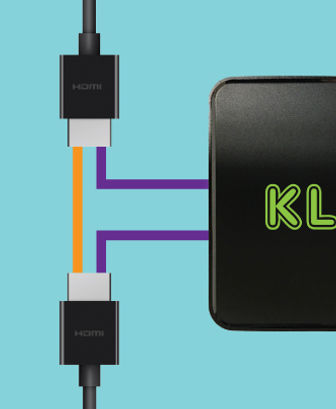
KLIK offers an HDMI input for the inclusion of any external audio/video feed into what is displayed on the presentation screen. Typical applications are for connection of a camcorder for live audio & video, a Document Camera, Blu ray player, or digital signage player.

The HDMI input is activated by the HDMI control icon in the Daisy menu. Click once to enable the input, and a a second time to disable it.

Tap to enable HDMI Input:


Tap to disable HDMI Input:


When there is no other content being shared, the HDMI input signal will fill the KLIK display screen. If shared content is being displayed when the HDMI input is enabled, or if the HDMI input had been enabled prior to any other content share, the HDMI input content will be displayed in one of the split screen quadrants. To maximize the HDMI input content, hover over the content pane and select the Maximize icon. Return the HDMI input content pane to split screen view by selecting the Minimize icon.

Click to Maximize the content pane:

Click to Minimize the content pane:
In accordance with HDCP anti-piracy standards, KLIK will not accept copyrighted content on the HDMI input.

Yes, KLIK supports local recording of all on-screen session content, including full-motion video from the HDMI input. Recordings can be saved to USB media such as SSDs or flash drives, or SD cards up to 256GB in size.